Use a PDF reader instead of printing from a browser preview
Download the PDF and open it in a dedicated PDF reader when possible. A reader gives you clearer control over page selection, scaling, orientation and print quality. Browser previews can work, but their controls vary and can make it easier to overlook scaling changes.
Confirm paper size and orientation
Check the product page for the intended dimensions, load the matching paper and choose portrait or landscape orientation as required by the file. If your printer automatically changes orientation, inspect the preview before printing.
Print one test page
A single test page can prevent wasted paper and ink. Check that the text is sharp, the margins are visible and there is enough room for binding or hole punching if you plan to use a binder. If the page appears too small, confirm that the print dialog did not apply an unnecessary shrink-to-fit setting.
Decide which pages you actually need
Printable products often contain reusable pages, reference pages and specialized worksheets. You do not have to print the entire file at once. Select the page numbers you need now and return to the PDF later when another section becomes useful.
Choose paper for the way the page will be used
Standard copy paper is economical for routine writing pages. Slightly heavier paper can improve durability for dividers, covers and reference sheets that will be handled often. If you use markers or heavy ink, test the paper first for bleed-through.
Store the master file safely
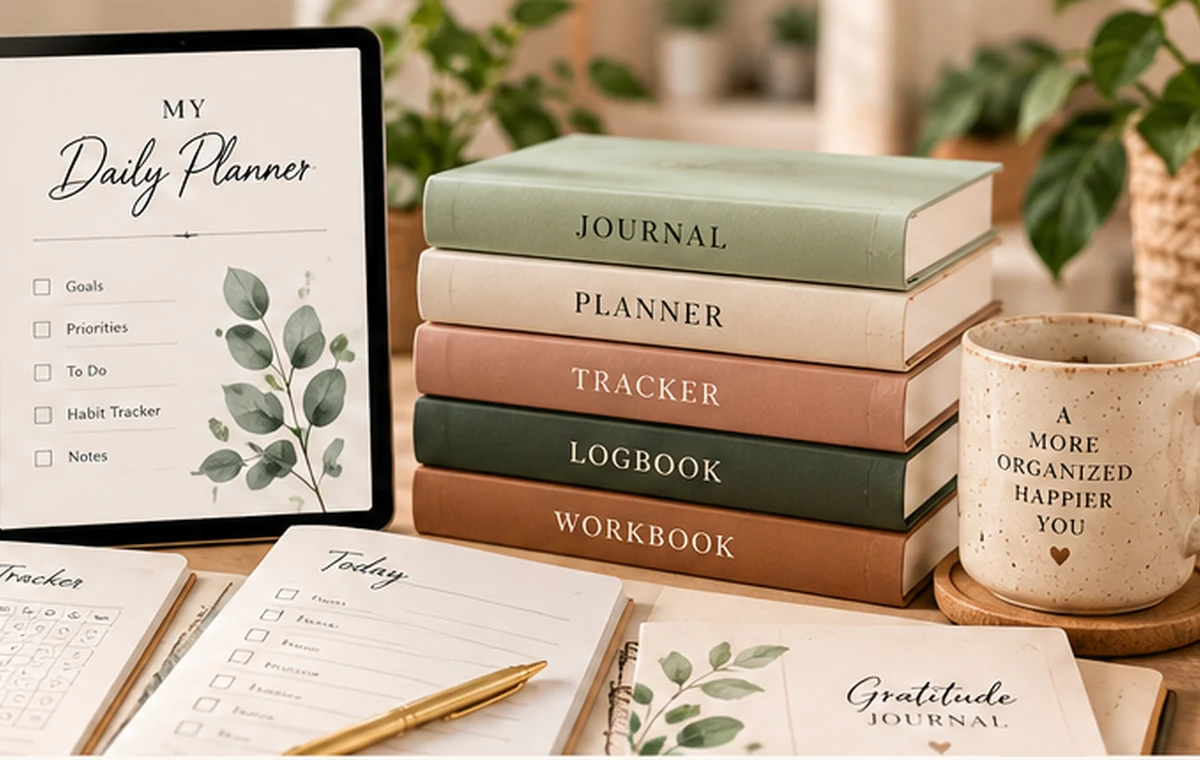
Keep the original PDF in a clearly named folder and back it up with your normal files. That makes it easy to reprint a page without scanning or photocopying a used copy. Browse journals, planners, trackers, logbooks and workbooks to compare printable formats.
Test ink, margins and duplex behavior first
Print a single representative page before printing the entire file. Confirm that text is sharp, no edges are clipped and the printer is using the intended paper source. If you plan to print double-sided, test front/back orientation because printers differ in how they flip the sheet.
Save ink where it does not affect usability
Draft or economical print modes can work well for routine worksheets, while covers and reference pages may look better at a higher quality setting. Grayscale is often fine for functional pages, but verify that shaded boxes and light lines remain visible.
Create a repeatable print workflow
Keep the original PDF untouched, note the page numbers you reprint most often, and store frequently used paper nearby. A small printing checklist prevents accidental full-document prints and makes it easier to replace only the pages you need.
Choose the printable format that matches the job
If the topic needs future actions, use a planner. If context and personal observations matter, use a journal. Repeated measurements fit a tracker; dated event history fits a logbook; guided questions and exercises fit a workbook. The Home Organization & Cleaning printable collection lets you compare those approaches without changing the subject you are working on.
Example: printing a weekly planner without wasting paper
Suppose a 40-page file contains monthly, weekly, notes and reference pages, but you only need four weekly sheets and one notes page this month. Open the PDF, note the page numbers, and print only those pages. If the weekly layout is double-sided, test two sheets first to confirm the back is not upside down.
Once the result is right, write down the successful printer setting or save it as a preset if your printer supports that. The next time you need replacement pages, you can print the exact range without sending the entire file to the printer again. Keeping the master PDF unchanged also makes it easier to recover a clean copy if a paper page gets damaged.
If pages are clipped, faint or misaligned
Clipped edges usually point to an incorrect paper size or a printer with smaller printable margins than the PDF expects. Faint lines may come from draft mode or low ink. Misaligned duplex pages can result from the wrong flip-edge setting. Change one variable at a time and use a test page so you know which setting solved the problem.
For repeated printing, keep notes about the successful configuration: paper size, scale, orientation, duplex setting and quality mode. That small record can save paper and ink when you return to the same printable weeks later.
Questions to answer before you settle on a system
- What page size does the PDF specify?
- Do I need single-sided or duplex printing?
- Which page numbers do I actually need today?
- Is a test page readable at the selected quality?
- What settings should I save for the next print run?
A step-by-step checklist
- Step 1: Open the original PDF in a desktop PDF reader rather than a browser preview when possible.
- Step 2: Select the exact paper size and verify portrait or landscape orientation.
- Step 3: Print one page first and check margins, line weight and text readability.
- Step 4: Test duplex orientation before sending a large double-sided print job.
- Step 5: Use economical quality for routine worksheets and higher quality for covers if desired.
- Step 6: Save the page numbers you reprint often so replacement printing is faster.
The Complete Gardening Printable Bundle contains five separate PDFs and a combined file. For a small first print run, open only the planner PDF and choose the page you need rather than printing the entire bundle. Check the PDF reader’s page counter, test that page, then save the successful paper-size and scaling settings.
Explore related printables
Continue with the Home Organization & Cleaning printable collection, where you can compare its planner, journal, tracker, logbook, workbook and bundle. You can also return to the Printable Planning Guides for more practical help.